
When connected to the internet, Crescendo downloads selected files and folders from your Cloud Storage Platform to the device. This process is called synchronization. It allows you to access your content both when online and offline.
Initial Sync
The initial sync process is the first sync after you login to Crescendo for the first time. All data is being downloaded onto your device. How long the initial sync takes depends on the amount of data that needs to be downloaded and the speed of the internet connection to your iPad, iPhone or and Android device.
Upon your first login:
- Connect your device to fast and reliable wifi.
- Login to Crescendo. The synchronization will start. Do not close Crescendo. The sync cannot continue when Crescendo is backgrounded.
- Crescendo prevents your iPad from going to sleep automatically during the sync process. Avoid putting your device to sleep until your initial sync is completed.
You can continue to use Crescendo while data is being downloaded.
Auto sync
Each time you launch Crescendo and you’re connected to the internet, the app calls back to your Cloud Storage Platform to check if there are any updates to your content. For example, new files and folders are added, name changes occur, revisions to existing files, etc.
Crescendo downloads just the changed content, and not all content. If there have been several changes to the content since your last sync, Crescendo will complete the update with just one efficient sync. Several syncs are not necessary.
During this process, Crescendo is functional. Users do not need to wait for the syncing process to be completed before they use the app and open files and folders.
Forced sync
Perhaps you just added content to your cloud storage and want to make sure it is available on your iPad immediately. In such a case, you can force the app to sync. This is very easy and can be done in a couple of ways:
To force a sync for a specific Case:
-
- open Command Center, tap Update button

- open Command Center, tap Update button
- or use two-finger double-tap gesture or pull-to-refresh gesture anywhere inside your Case

To force a sync for all your Cases:
-
- open Settings, tap Synchronize Now, or
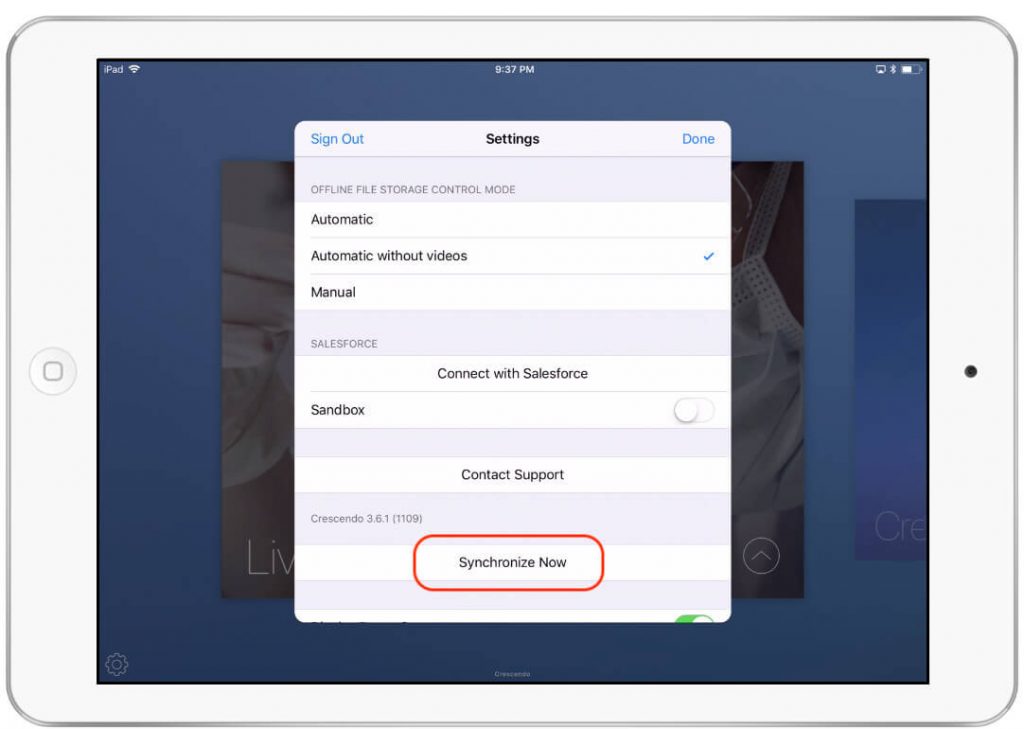
- open Settings, tap Synchronize Now, or
- or go to multicase view, use two-finger double-tap gesture anywhere outside of your Case cover images.


