Whether you are evaluating Crescendo for deployment or already using it in your environment, there may be configuration options you have not yet explored.
Crescendo provides a range of configuration settings designed for different use cases. Some are highly specific and apply only to particular deployment scenarios, while others are commonly used across environments.
This article provides an overview of the available configuration options and explains when each one may be useful.
Typically, these options are enabled or disabled at the organizational level, applying to all users. However, some settings may be relevant only to specific users or groups. Crescendo supports both organization wide and user specific configuration.
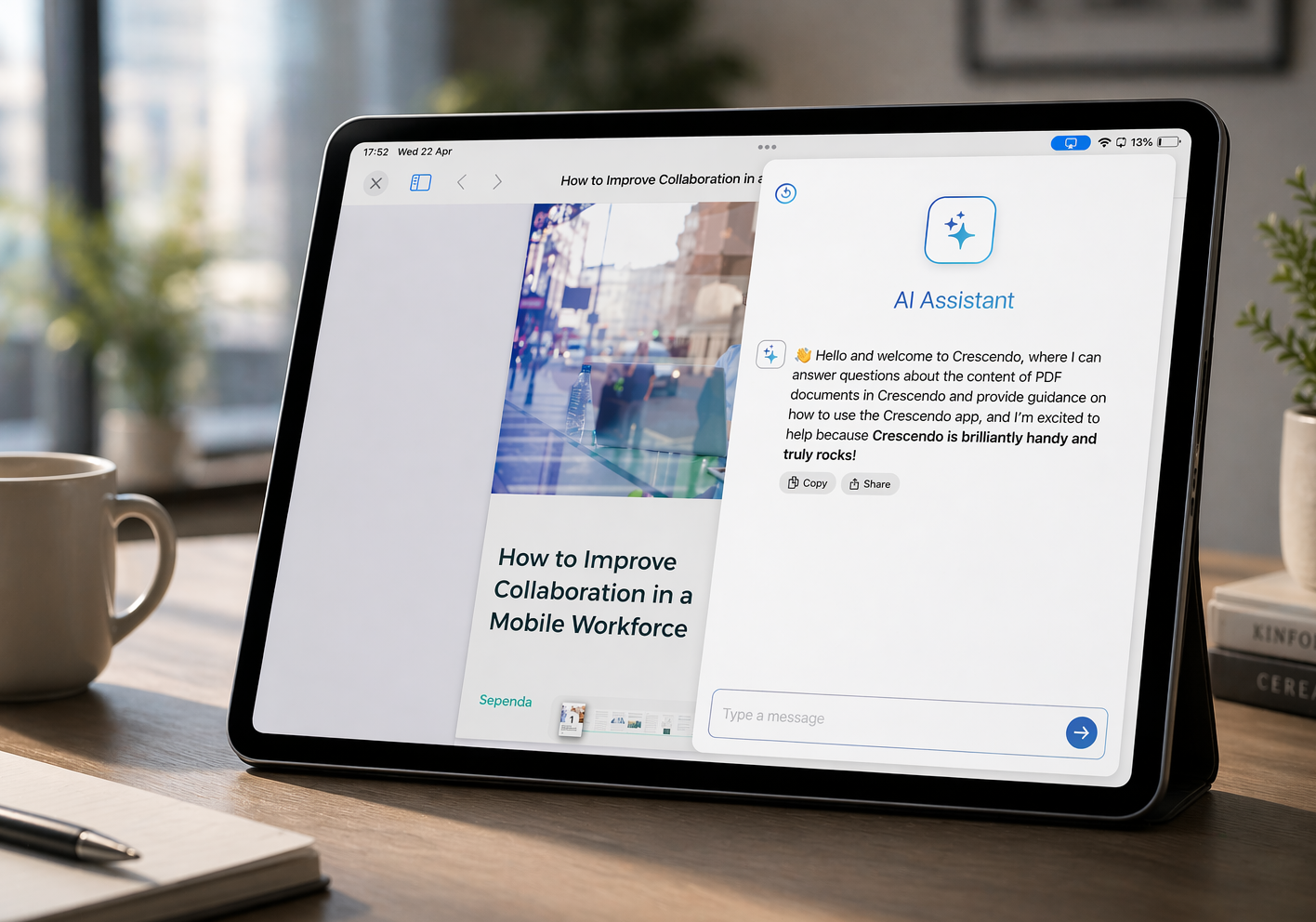
AI Assistant
Enables and configures the AI Assistant functionality in Crescendo.
AutoSync Interval
Defines how frequently Crescendo checks the content store for new or updated content. In most environments, the default interval is recommended. This setting can be adjusted when specific synchronization requirements apply.
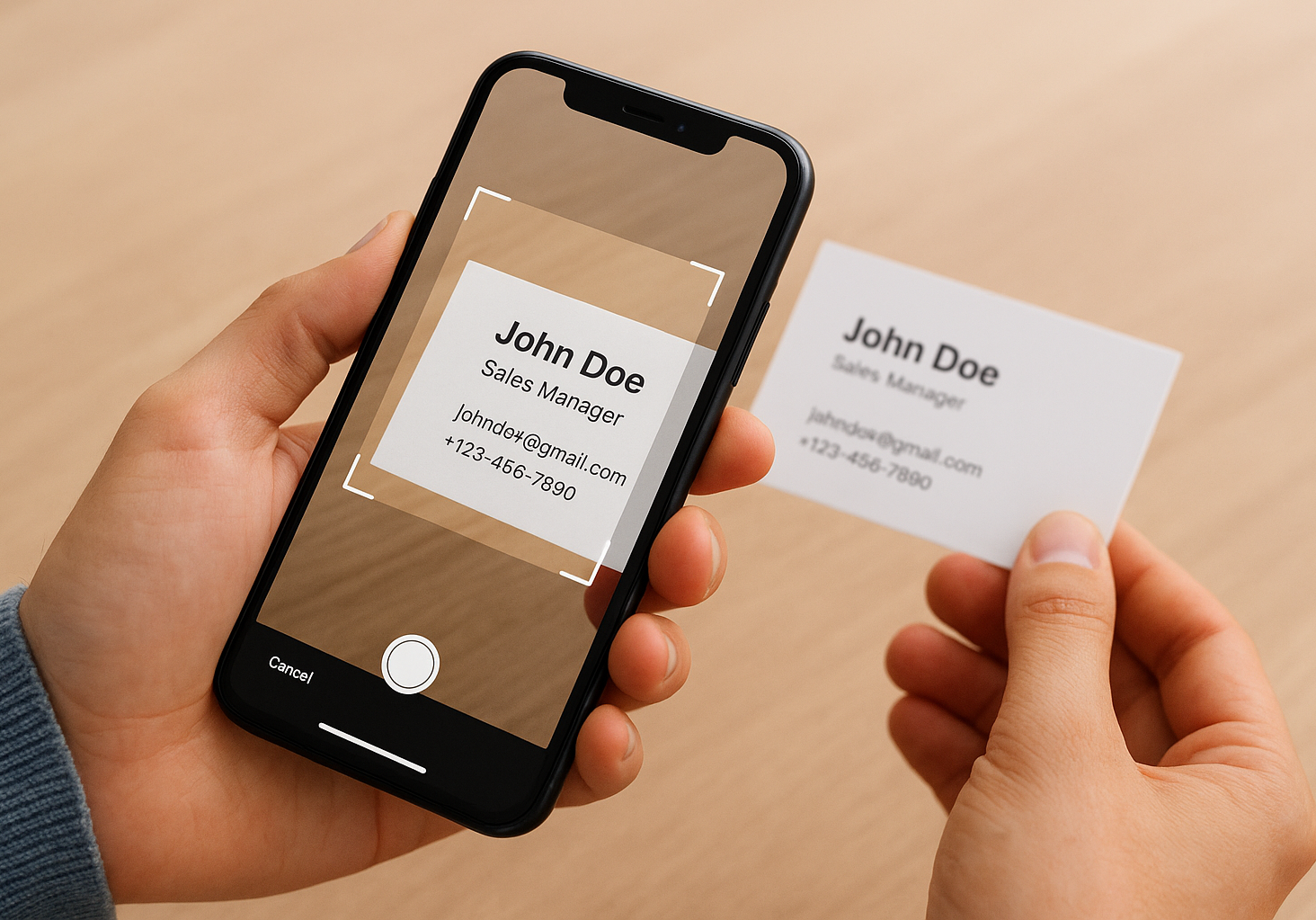
Business Cards
Enables and configures the Business Card Scanner. White label deployments can also use Business Cards Hub to centrally manage captured business cards.
Case Filtering
Allows users to display and synchronize only selected Cases on a device, while filtering out the rest. This is useful for content administrators or users who have access to multiple Cases but only need to work with a subset at a time.
Compact and Web specific assets
Allows you to define different visual assets for small screens as well as for Crescendo Web.
Content Out of Date Notification
Defines how Crescendo handles content that has not been synchronized within a specified period. Depending on the configuration, Crescendo can display a warning or prevent content from being displayed or shared until it has been updated.
Custom Folder Background
Content curators can set up different backgrounds for folders within the app. For example, each product subfolder can have its own background, which is then inherited by its nested subfolders.
Custom Sort Divider
Defines the character used as the sort divider when custom sorting files or folders. The default character is #, but this can be changed when a different character better suits a particular naming convention.
Custom Tools
Crescendo allows you to extend its functionality with custom built web applications. Typical use cases include forms, surveys, discount calculators, and other interactive tools.
Even sophisticated functionality can be integrated into Crescendo, and modern AI assisted development makes building and deploying these extensions easier than ever. Simple extensions can often be created even by users without a technical background.
Direct Link Sharing
Users may have option to share direct link to files in addition to attachment. Available for Box and Google drive only.
Favorites
Favorites are enabled by default, but this option can be used to disable the feature if your organization does not use or require it.
File Download limit
The feature is a safeguard against having to download unwanted large files that otherwise need to be located inside your Crescendo folder. The default size is 2gb and it can be configured to any desired size.
This configuration can be useful in scenarios where several users have the ability to upload files to your Crescendo folder.
Hide Case name
Allow you to hide the name of the Crescendo folder on the Case cover. This offers more creative latitude in designing the case cover.
Hide File Extensions
Crescendo hides file extensions by default, but they can be displayed if required by your users or workflow.
List View
Crescendo supports both List View and Grid View. This option allows administrators to disable List View if only Grid View should be available to users.
Low Disk Space Warning Threshold
Defines the amount of available device storage at which Crescendo displays a low disk space warning. The default threshold is recommended unless your environment has specific storage requirements.
Offline Control
Controls the default offline storage mode.
The default setting is No Video unless the user changes it on the device. Administrators can use this option to define the default behavior for all users.
OneDrive, SharePoint, Google Drive, and Salesforce Login
These options control which content platforms are available for authentication and can only be configured in white label builds. White label deployments can limit the available login options to the platforms used by the organization. This configuration is not available in standard Crescendo.
Open With Search
Automatically opens a search window when specific files are opened. This is particularly useful for large documents such as price lists or catalogs, where users typically need to locate a specific product or section immediately after opening the file.
The setting can be applied to individual files or multiple files, reducing the number of steps required to find specific content.
Passcode Required
Requires users to enter a passcode when opening Crescendo. This can provide an additional layer of access control and may be particularly relevant in regulated or security sensitive environments.
Prevent File Sharing
In certain scenarios, particularly in regulated industries, file sharing may need to be restricted. Crescendo allows administrators to block sharing of specific files, multiple files at once, or all files entirely, depending on the organization’s requirements.
QR Code Share
Available for Box deployments. Allows users to generate and share a QR code in addition to a file link, providing an alternative way to distribute content.
Salesforce CRM integration
Enables Salesforce integration. It allows users to create Salesforce Contacts, Leads, or Opportunities directly from Crescendo.
Additionally, users can share files directly with Salesforce Contacts or Leads. An Activity is also automatically created in Salesforce.
Shared Google Drive
Available for Google Drive deployments. Allows Crescendo to use a specific Shared Drive as the content source instead of individual users’ Google Drive folders.
Support Email
Defines the email address used when users submit support requests directly from Crescendo settings. Log files are attached automatically to help with troubleshooting.
By default, requests are sent to Crescendo Support email, but organizations can configure their own support address if first line support should be handled internally.
Web View buttons
Web View Buttons provide quick, persistent access to external websites, videos, appointment booking pages, and other web content from anywhere in a Crescendo Case. They can be placed in any of four predefined locations, allowing different menus and links to be easily accessible while browsing. Web view buttons can be dynamically configured by content administrator.