
By default files and folders in Crescendo Cases are displayed in alphabetical order. However, it may be necessary to display them in a custom order. Read this post to learn how.
Crescendo allows you to define display order of files and folders on any level of your Crescendo Case folder hierarchy.
Example:
There are four folders directly under your Crescendo Case: Company Info, Marketing, Order forms, Products, and one file: NDA template.pdf

The desired display order however is: Products, Marketing, Company Info, Order forms, NDA template.pdf
To define a custom order, each item (file or folder name) needs to be prefixed with x# (where x is a number):
| 10#Products |
| 20#Marketing |
| 30#Company Info |
| 40#Order forms |
| 50#NDA template.pdf |
It is recommended to use i.e. 10, 20, 30, 40 rather than 1, 2, 3, 4 to be able to add a file or folder in between existing ones later, without renaming them.
In your next sync, the display order of your items will be adjusted accordingly:
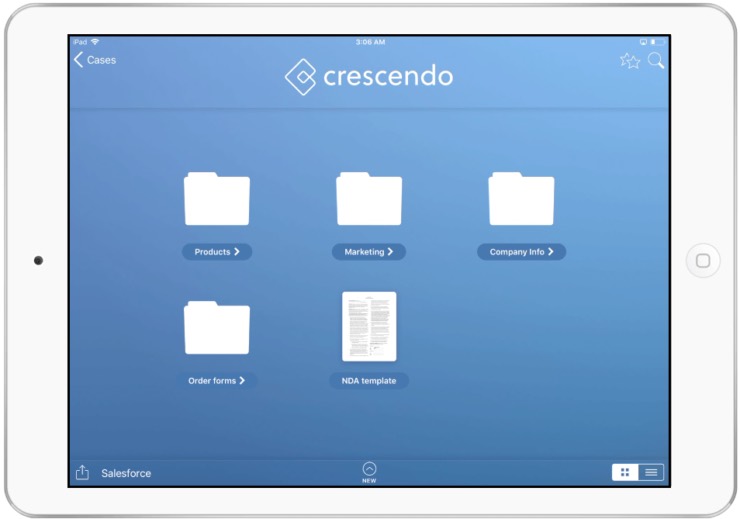
You can order files and folders in any folder under your Crescendo Case. Please keep in mind, that the sort order change will affect all collaborators.
Custom order of Cases on multicase view.
Cases on multicase view can be custom ordered the same way as files and folders.
Note: custom order of Cases is available in Crescendo 3.4.1 or newer.
Custom sort divider
By default your sort divider is # character. Contact Crescendo Support Team if you need to use a different character as sort divider.


